
From prompt to importable MeshPart
A 3D model is the part most AI tools wave their hands at. They'll hand you a beautiful concept image and call the job done — except you can't drop a concept image into Roblox Studio. You need an actual mesh: vertices, faces, UVs, a baked texture, and topology clean enough to ship without retopo work.
Meshlox is built around 3D output. Every generation produces a real model with quad-dominant topology, UV-unwrapped textures, and a triangle count tuned for Roblox's mesh budgets. The studio previews the mesh live in the browser — rotate, zoom, inspect the topology — so you can verify before exporting.
What you get out of the generator
- Clean topology. Quad-dominant where possible, consistent edge flow on accessory silhouettes, no shading artifacts from broken normals.
- Baked textures. Diffuse maps generated in the same pass as the mesh — palette, material cues, and accent colors all match the prompt.
- UV unwraps. Models ship pre-unwrapped so you can swap textures in Substance, Blender, or Roblox Studio's surface appearance system.
- Roblox-aware triangle counts. Default presets stay under 4,000 tris for accessories. Quality tier picks the trade-off between silhouette detail and mobile performance.
- Standard formats. FBX, OBJ, GLB. Open in any 3D tool. Or skip the file and use the Roblox Studio plugin.
Workflow walkthrough
- Write a prompt or upload a reference image. Image-to-3D works especially well for matching an existing brand or character silhouette.
- Pick a quality tier. Higher tiers spend more credits but produce denser meshes and higher texture resolutions.
- Generate. 1–3 minutes for the full mesh + texture pass. The studio shows progress.
- Inspect. Live 3D preview in browser. Triangle count and bounding box are shown so you can size before committing.
- Iterate. Re-prompt to refine — most creators land at the final mesh in 2–4 passes.
- Export or send to Studio. Download FBX/OBJ/GLB, or use the Meshlox plugin to drop the mesh directly into your place file.
Where a generated model fits in Roblox
Three common use cases dominate:
- UGC accessories — hats, hair, wings, crowns, backpacks. The most common Meshlox use case. Plugin handles attachment placement.
- Game props — weapons, pickups, interactables, environment dressing. Drop as MeshParts.
- Marketing renders — generate hero assets for game thumbnails or icon source material. Even if the mesh never enters the game, you have a 3D pose-able source.
Example outputs
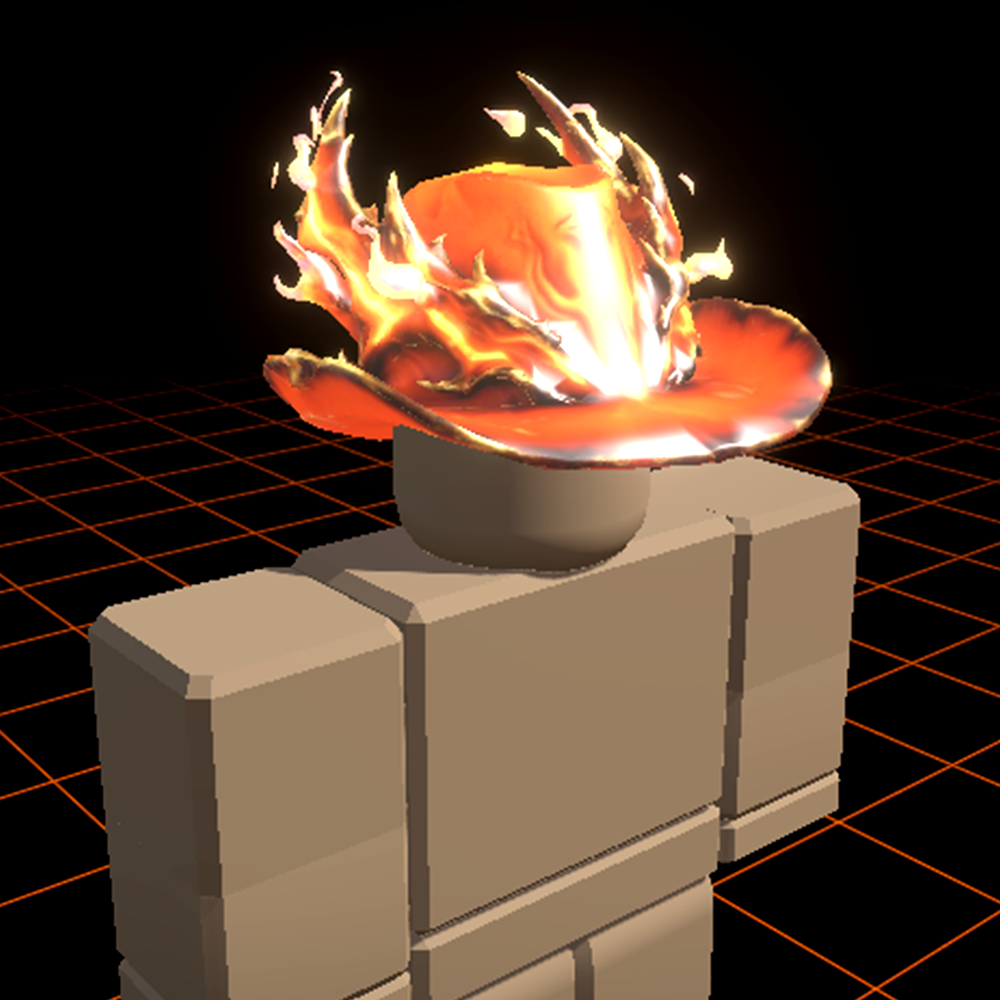
Hat accessory, ~1,800 triangles, baked 1024 diffuse, ready for HatAttachment.
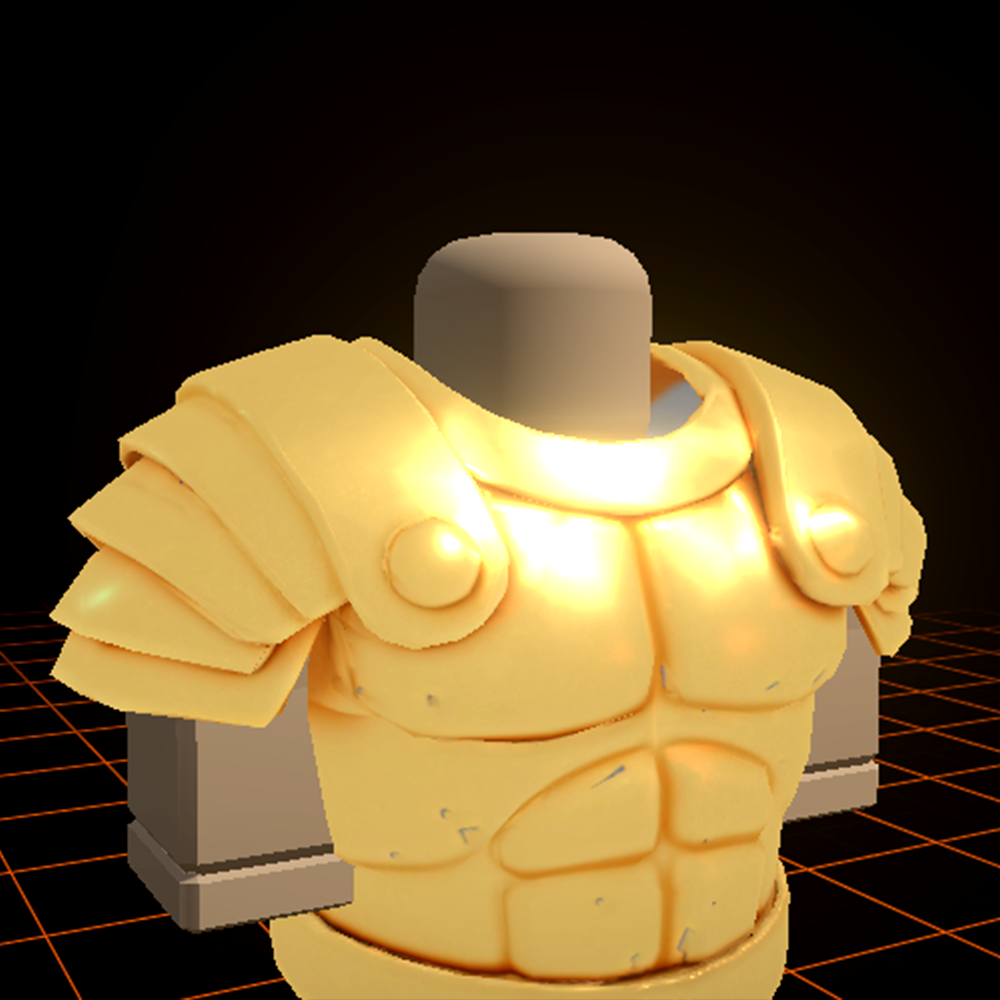
Pauldron accessory, ~2,400 triangles, normals clean, ready for ShoulderAttachment.
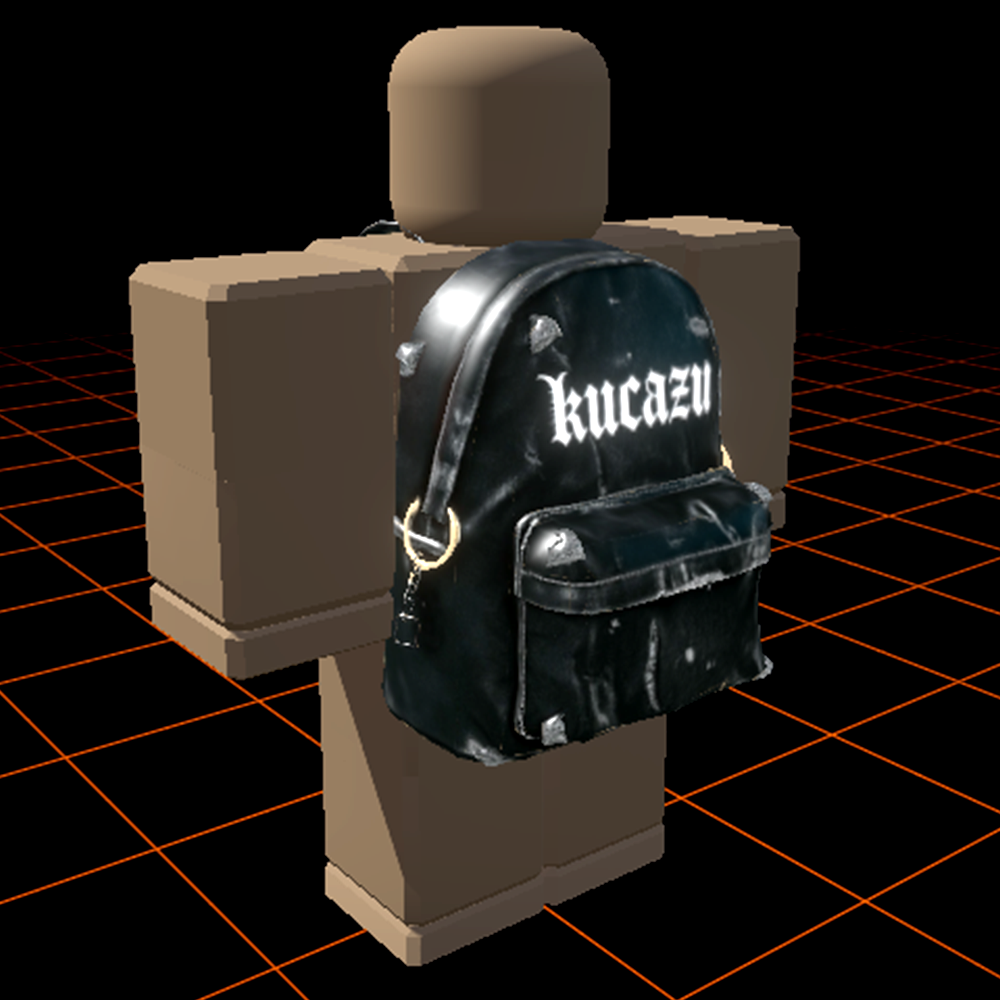
Backpack accessory, ~3,100 triangles, ready for BodyBackAttachment.