
How to Create Roblox 3D Models in 2026 (No Blender Required)
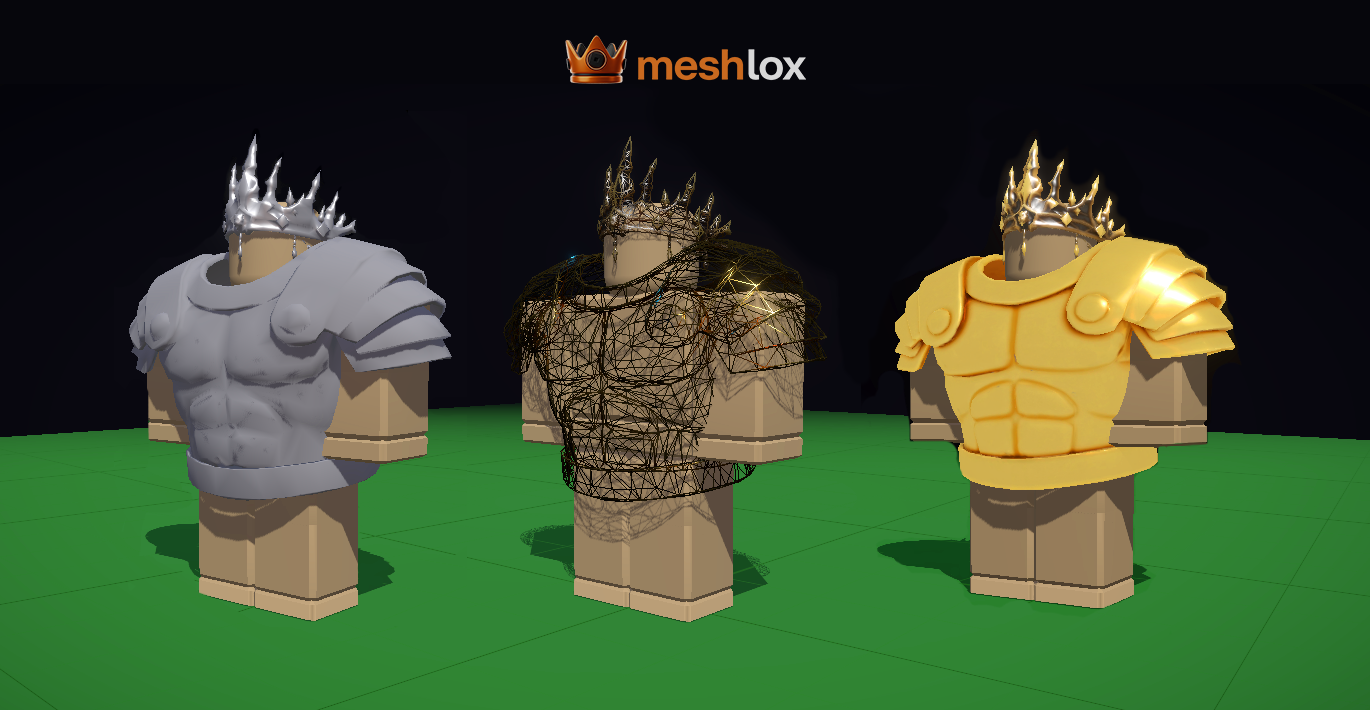
Creating a 3D model for Roblox used to mean weeks of Blender tutorials, UV unwrapping, and reading forum posts about mesh import limits. In 2026, you can describe what you want and have a game-ready mesh in your Roblox Studio place in under a minute. This guide shows you exactly how — using Meshlox, our AI workspace built specifically for Roblox UGC creators.
Why Roblox creators are switching to AI 3D generators
Roblox has over 70 million daily active users and the UGC catalog grows by tens of thousands of items every week. The bottleneck for most creators isn't ideas — it's the time it takes to model, texture, and import a mesh. AI 3D generators flip that. You write a sentence, the model comes out triangulated, textured, and ready for MeshPart.
Meshlox is built specifically for this workflow. Unlike general-purpose tools, every output respects Roblox's 10,000-triangle limit, stays under the 20MB asset cap, and uses UVs that map cleanly to a single 1024×1024 texture.
The 3 ways to create a Roblox 3D model
Before we jump in, here's the honest landscape in 2026:
- Blender + manual export. Maximum control, steep learning curve, 4–20 hours per asset.
- Roblox Studio primitives. Free and beginner-friendly, but limited to blocky parts and unions.
- AI 3D generators (Meshlox). Text-to-3D and image-to-3D in seconds, with a one-click plugin into Studio.
We'll focus on method 3 because it's the fastest path from idea to working in-game mesh. The other two are still great — and Meshlox exports a clean .obj, .fbx, or .glb if you want to finish a model in Blender.
Step 1 — Describe your model
Open Meshlox Studio and type a short prompt in the input panel. Good prompts for Roblox UGC are short, concrete, and call out the silhouette:
- "low-poly viking sword with glowing runes, stylized"
- "cute fox plush hat, pastel colors, Roblox UGC"
- "futuristic neon hoverboard with cyan trim"
Two tips that consistently produce better Roblox meshes:
- Add "low-poly" or "stylized" — these keywords steer the model away from photoreal density.
- Mention one accent color. Roblox UGC items read best at thumbnail size with a single pop color.
Step 2 — Pick a quality preset
Meshlox ships three presets and each one has a job:
- Fast — under 15 seconds. Great for iterating on silhouette and pose.
- Balanced — about a minute. The default for catalog-ready accessories.
- Detailed v2 — 2–3 minutes. Use this for hero items, gear, and anything the camera will get close to.
You can generate on Fast, like the result, and then upscale to Detailed without re-prompting. The mesh keeps the same silhouette.
Step 3 — From image to 3D (optional but powerful)
If you already have a 2D concept — a screenshot from your sketchbook, an old DALL·E render, or a reference photo — drag it into the Image-to-3D panel. Meshlox will read the silhouette and produce a mesh that matches the viewing angle.
This is the workflow most pro UGC creators use: design the look in 2D where iteration is cheap, then convert once you're happy. Read our tutorials for the full image-to-3D walkthrough.
Step 4 — Send it straight to Roblox Studio
This is where Meshlox is genuinely different from every other AI 3D tool. Install the Meshlox Roblox Studio plugin once, paste your API token, and every model you generate appears in Studio with a single click — no .obj download, no manual mesh import, no UV re-mapping.
Under the hood the plugin:
- Authenticates with your account using a per-project token (credits deduct from your balance).
- Streams the mesh and a 1024×1024 baked texture directly into your open place.
- Creates a
MeshPartat the world origin with collision and render fidelity set to Default.
You can keep generating in the browser at meshlox.com/studio — the plugin syncs in real time.
Step 5 — Test on an R15 / R6 rig before publishing
Every accessory should be checked on a live avatar before you upload to the catalog. Meshlox's Live Try-On scene renders your mesh on both R6 and R15 rigs so you can spot clipping issues that would otherwise be a moderation reject.
Quick checklist before you hit Publish to Marketplace:
- Triangle count under 10,000 (Meshlox shows this in the inspector).
- No floating geometry — Roblox's automated checks flag stray vertices.
- Texture under 1024×1024 PNG, single material.
- Pivot point sits inside the mesh, not above it.
How much does it cost?
Meshlox runs on a credit system. A Fast generation is 1 credit, Balanced is 3, Detailed v2 is 8. New accounts get free credits to try the whole pipeline. Full breakdown on the pricing page.
Compared to outsourcing a single UGC mesh on Fiverr ($25–$150) or learning Blender from scratch (40+ hours), an AI generation is the cheapest cost-per-iteration available to a Roblox creator in 2026.
Frequently asked questions
Can I sell AI-generated Roblox 3D models on the Marketplace?
Yes. You own the output of every Meshlox generation and can list it as UGC, as long as your account is part of Roblox's UGC program and the asset passes moderation.
Do I need Blender to use Meshlox?
No. The Studio plugin imports meshes directly. Blender is only useful if you want to do manual cleanup, retopology, or rigging.
What file formats does Meshlox export?
.obj, .fbx, and .glb — all with baked PBR textures.
Will the mesh respect Roblox's triangle limit?
Yes. Every preset caps geometry at 10,000 triangles by default, and the inspector warns you before you export.
Next steps
You now have a working pipeline: prompt → mesh → Roblox Studio → catalog. The fastest way to get good is to ship 10 small items this week. Open Meshlox Studio, grab the Studio plugin, and start generating.
Ready to generate your first model?
Open Meshlox Studio in your browser — no install, no Blender.